


Faster AI Scalp & Hair Analysis: How to Use SIF Pro Observation Mode
SIF Pro is receiving growing interest not only from hair loss clinics and hospitals, but also from professionals conducting hair and scalp research.
In real clinical and research environments, there are situations where multiple images and questionnaires are needed for a comprehensive analysis. However, there are also many cases where users simply need to magnify the patient’s scalp and hair to quickly check and explain their condition.
SIF Pro provides two modes to support these different workflows.
Analysis Mode
Comprehensively analyzes the condition of the scalp and hair based on questionnaires and multiple captured images.
Observation Mode
Allows users to magnify and immediately observe the scalp and hair using the camera.
Users can select either mode depending on their needs.
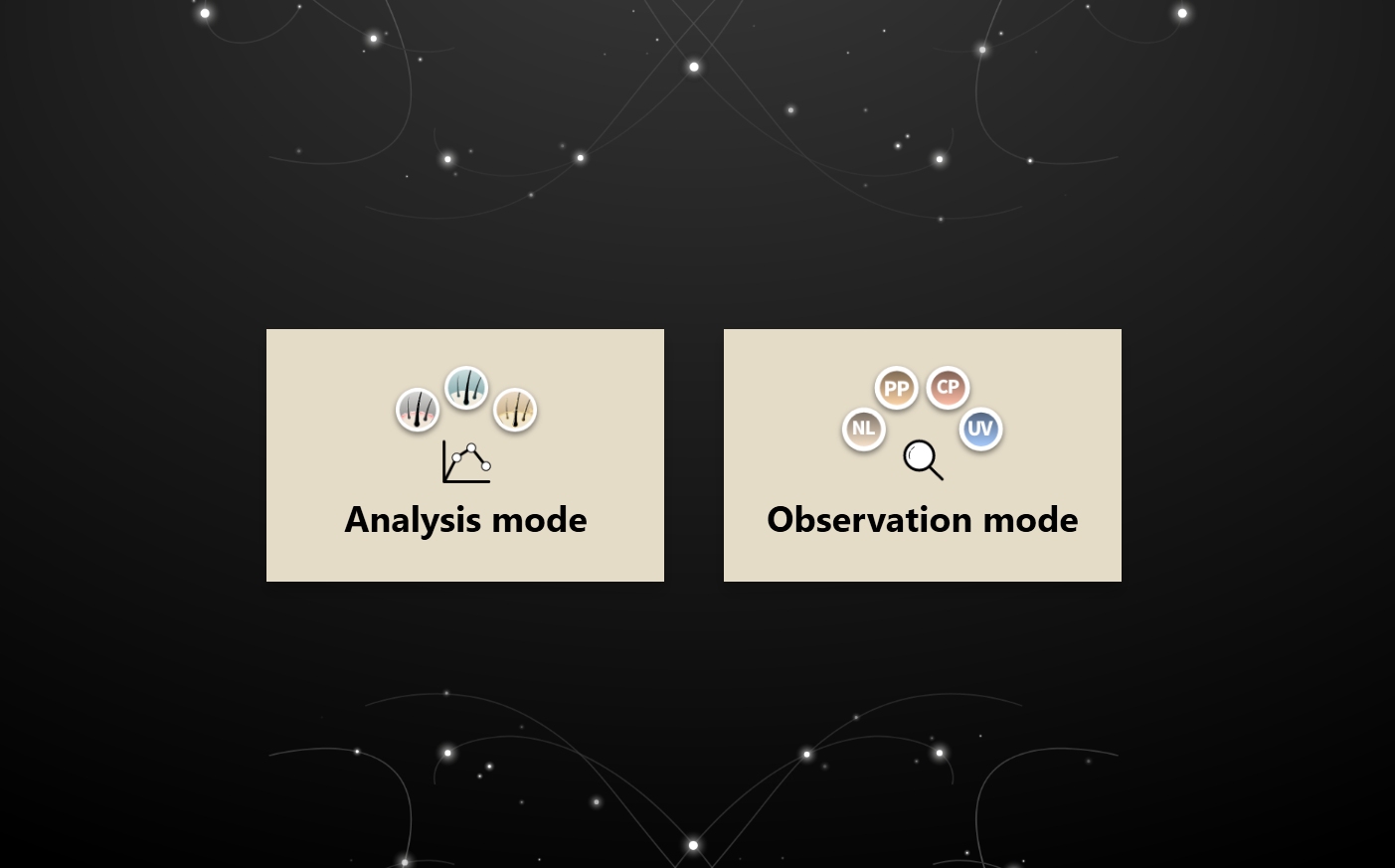
▲ Analysis Mode and Observation Mode in SIF Pro
AI Analysis Is Now Available in Observation Mode
Previously, the AI hair analysis function was available only in Analysis Mode.
With this update, a quick AI analysis function has also been added to Observation Mode.
This means that while observing a patient’s scalp, if a particular area requires closer examination, users can run AI analysis immediately without switching to a separate analysis process.
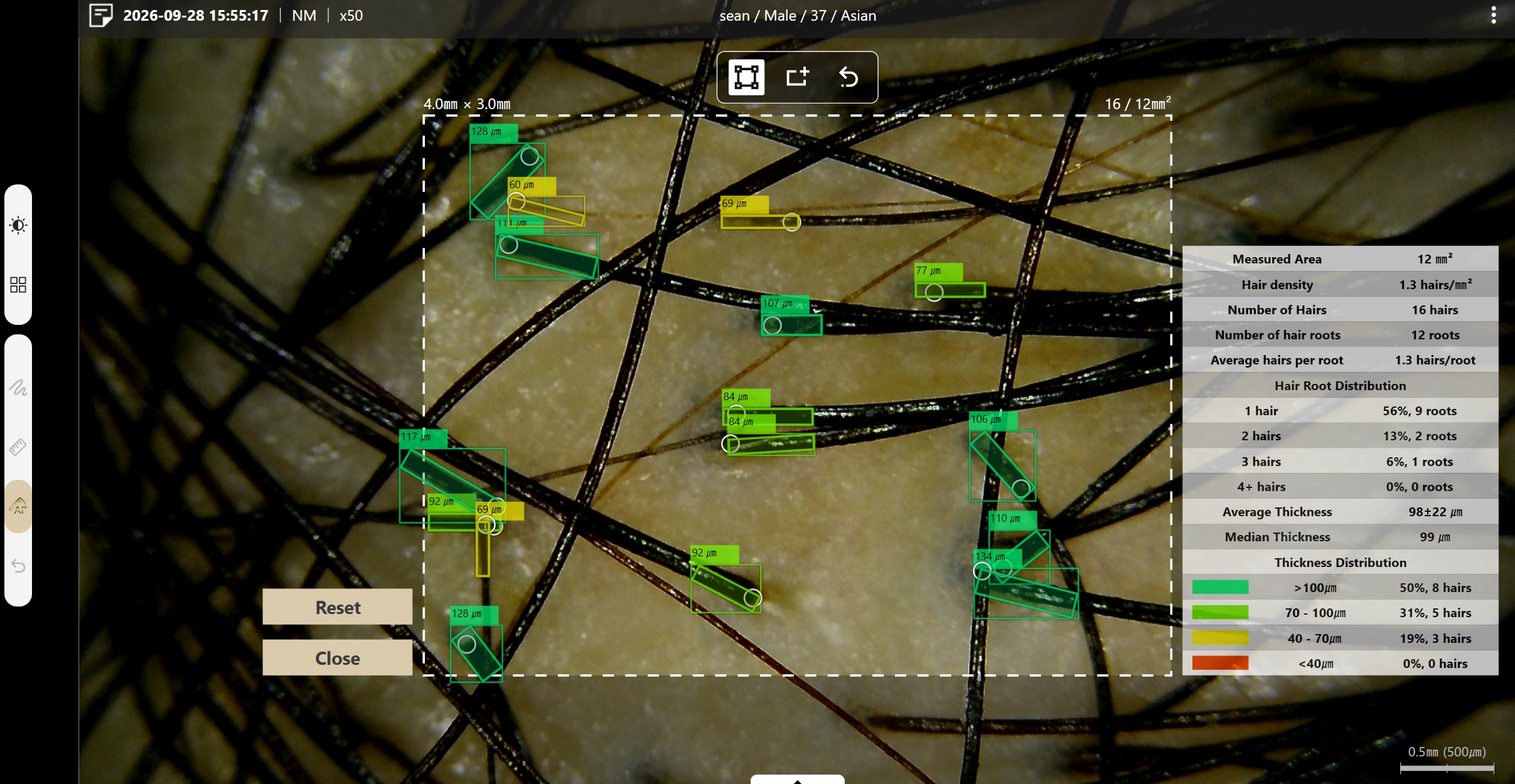
▲ Press the AI button in Observation Mode to start an analysis immediately.
The AI recognizes hair in the captured image and analyzes information such as hair thickness and hair count.
The analysis results provide the following information.
- Hair Density
- Number of Hairs
- Number of Hair Roots
- Average Hairs per Root
- Hair Root Distribution
- Average / Median Thickness
- Thickness Distribution
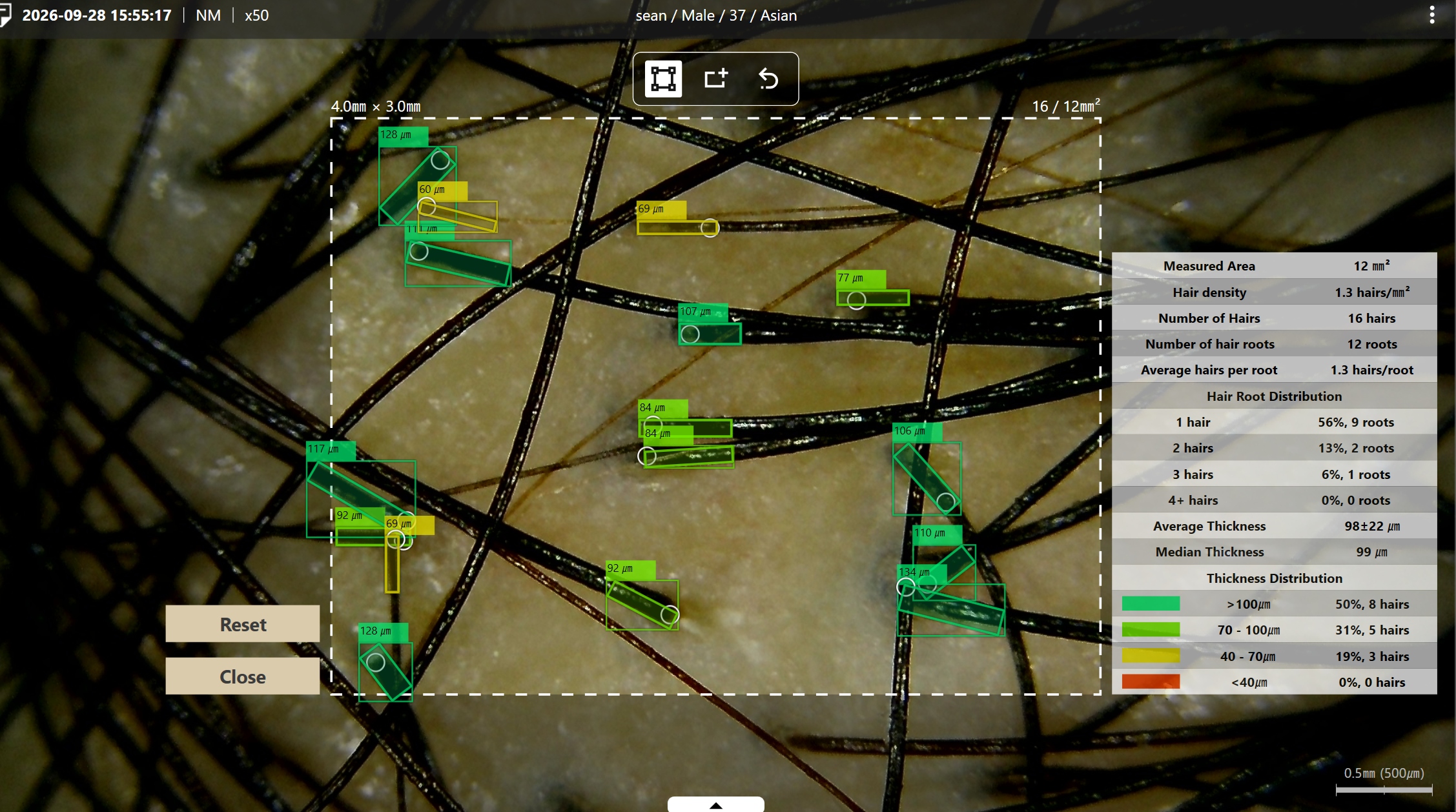
▲ The hair detected by AI and the thickness of each hair can be viewed directly on the image.
The key point of this update is that users can not only magnify scalp images but also check the condition of the hair within the actual captured area together with numerical data.
Use Guest User for a Quick Check
If you simply want to check the condition of the scalp and hair, you can use Observation Mode immediately as a Guest User.
Because no customer registration is required, this is convenient for short consultations or quick checks.
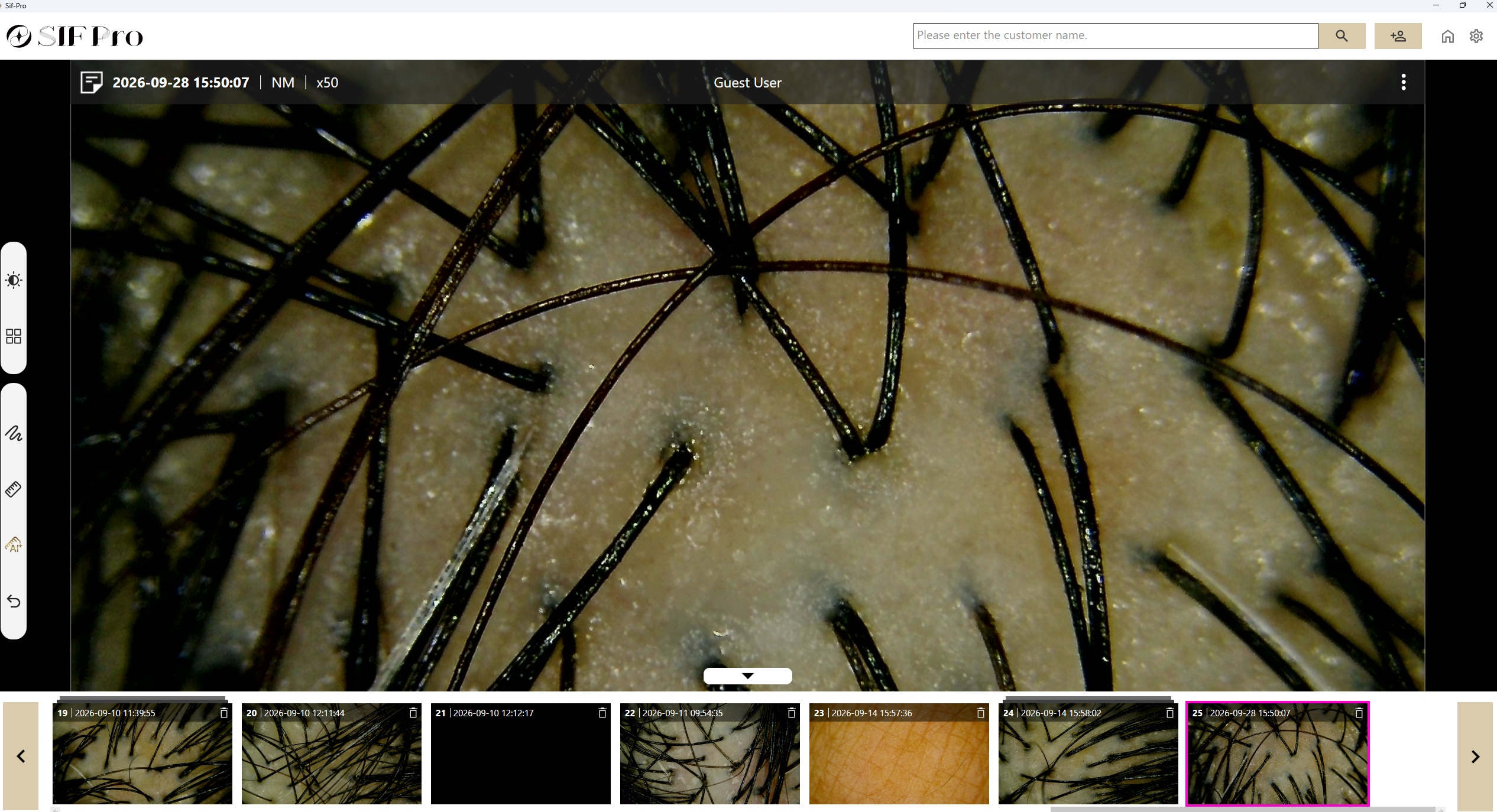
▲ Guest User allows you to start capturing images immediately without registering a customer.
You Can Also Keep Image Records for Each Patient
If you want to continuously manage the condition of a patient undergoing treatment, simply search for the customer’s name before capturing images.
Images captured under that customer are continuously saved, allowing you to review previous records during future visits.
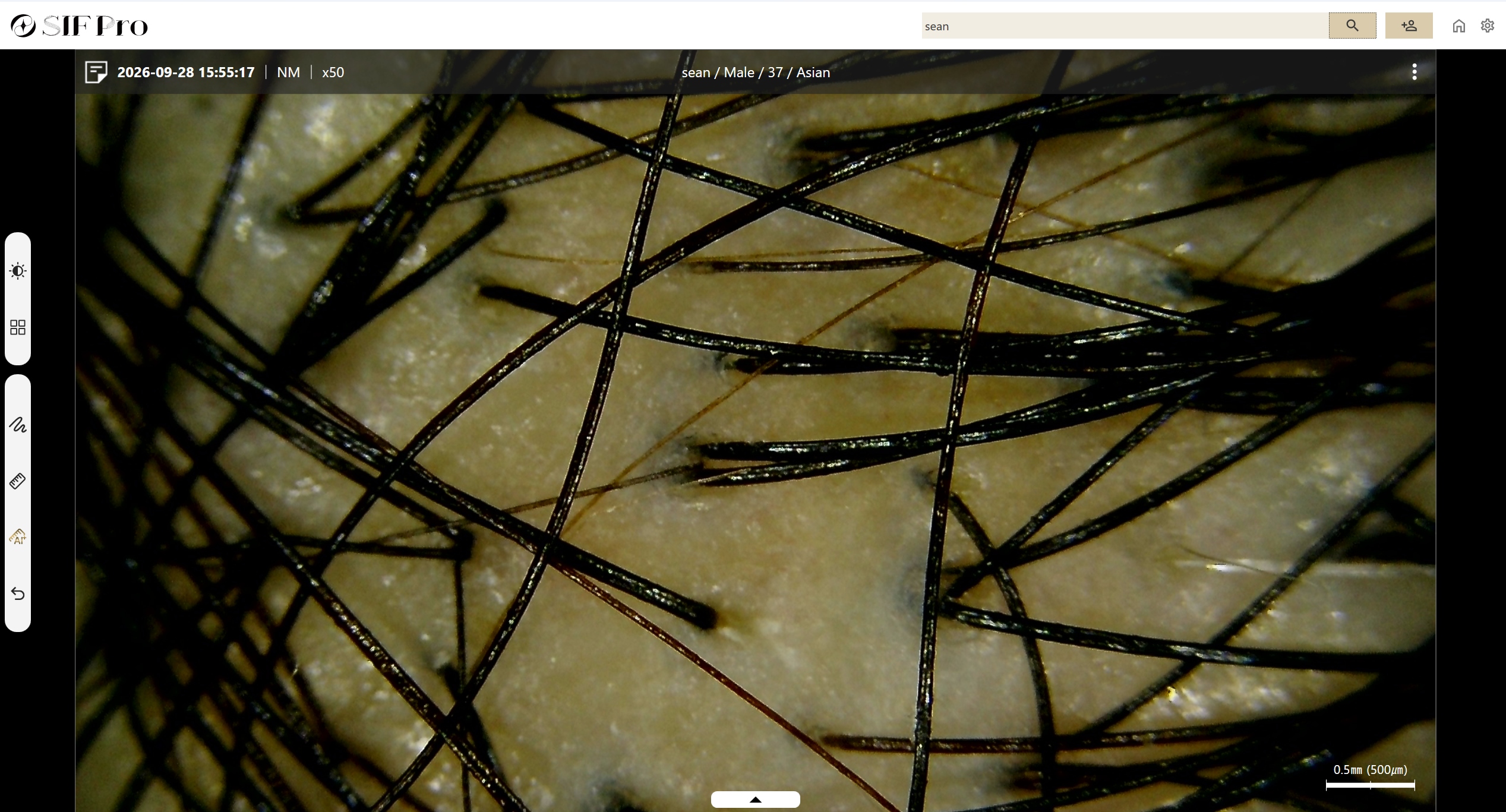
▲ After searching for a customer, captured images are saved as part of that customer’s record.
In hair loss treatment and scalp care, it is important not only to capture a single image but also to continuously record how the condition changes over time.
AI Analysis Results Can Also Be Saved
If you want to keep the AI analysis screen, select Save from the menu in the upper-right corner.
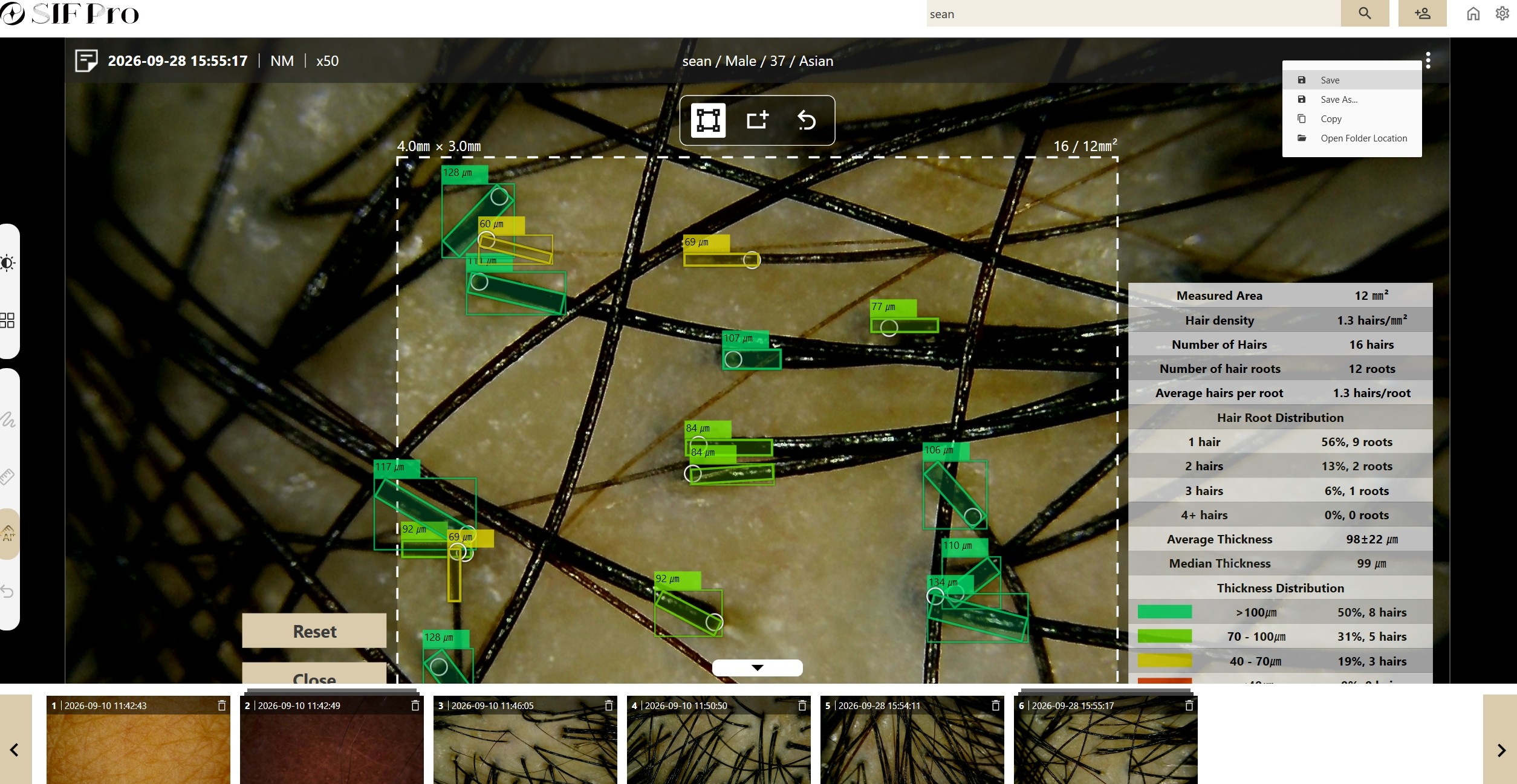
▲ Select Save on the AI analysis screen to save the result.
Saved images are added to the capture list at the bottom of the screen.
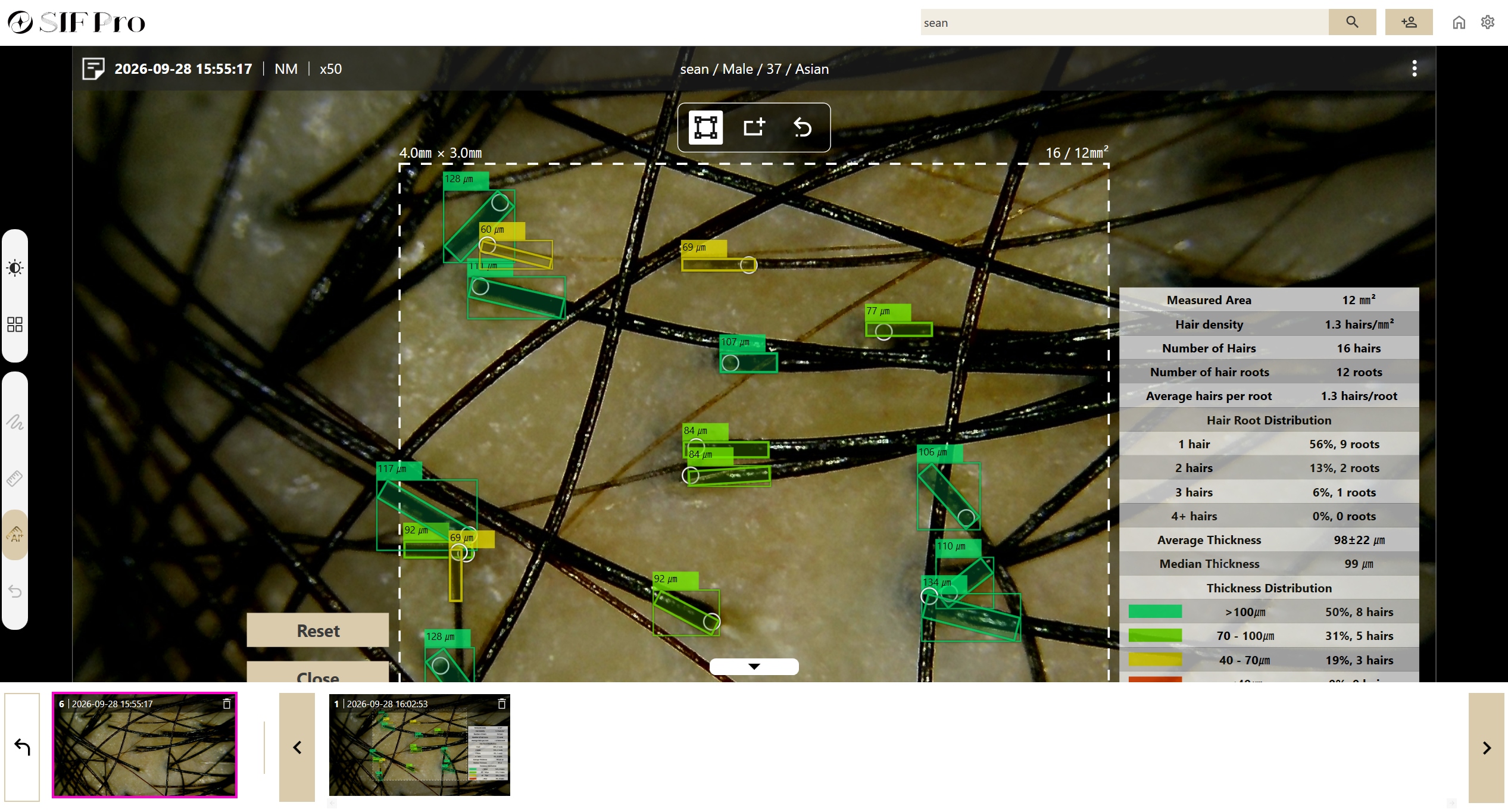
▲ Saved AI analysis ima
ges can also be viewed in the image history.
From Observation to AI Analysis and Record Management on One Screen
With this update, SIF Pro’s Observation Mode has evolved beyond simply magnifying the scalp and hair.
Capture → Observe → Quick AI Analysis → Save → Review Patient Records can now be performed in one simple workflow.
When detailed analysis is required, users can choose Analysis Mode. During consultations or examinations where a quick check of the hair condition is needed, Observation Mode can be used instead.
Especially in hair loss clinics that need to consult with many patients, one of the key advantages of SIF Pro Observation Mode is the ability to capture an image immediately and use AI assistance to check the hair condition whenever needed.